Monitoring Screenshot untuk Menambah Konteks pada Pekerjaan yang Dilacak
Pelacak waktu yang andal dengan screenshot menambahkan konteks visual pada waktu yang dilacak, membantu tim tetap transparan, siap audit, dan selaras dengan progres proyek.
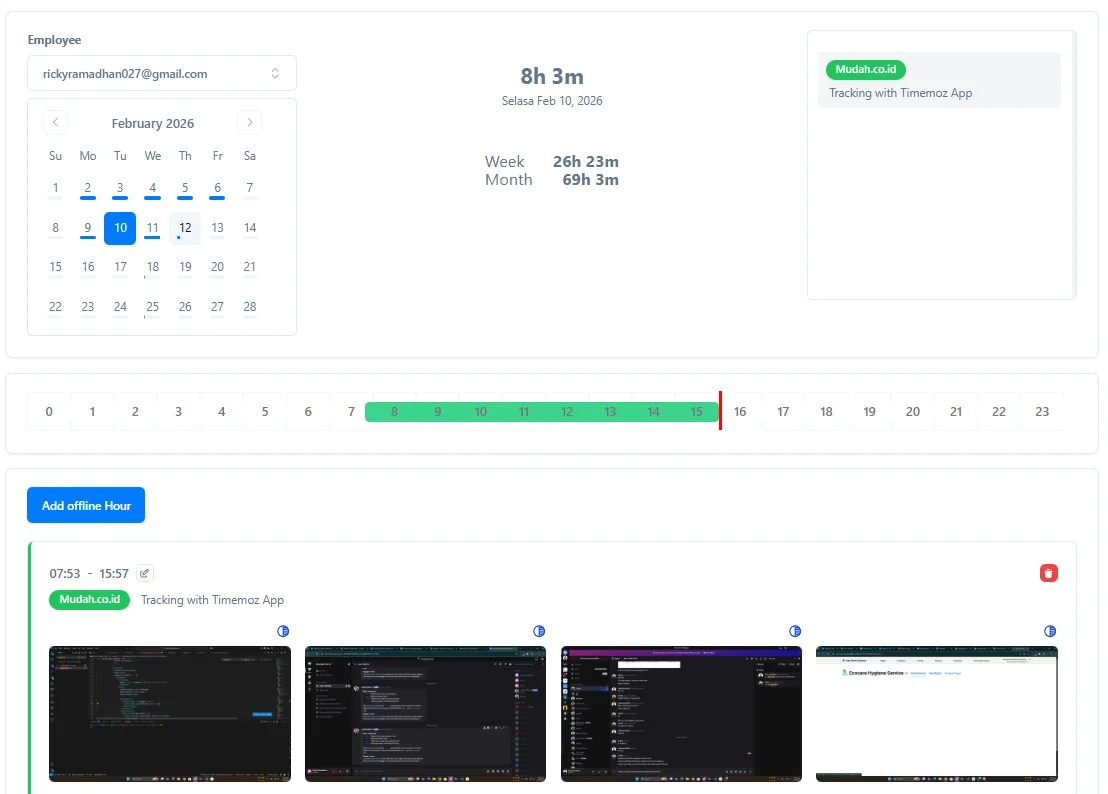
Tools monitoring screenshot dengan analitik produktivitas
Monitoring screenshot Timemoz yang dapat dikustomisasi membantu Anda melacak progres dan mengidentifikasi aktivitas yang membuang waktu. Tim remote Anda bisa fokus pada tugas yang penting.
Bukti Visual Pekerjaan
Timemoz mengambil screenshot periodik selama waktu dilacak, memberikan manajer konteks visual tentang aktivitas karyawan. Lihat tangkapan layar bersama entri waktu, level aktivitas, dan penugasan proyek untuk gambaran lengkap tentang bagaimana pekerjaan diselesaikan.
Pelajari Lebih Lanjut
Monitoring Produktivitas Intuitif dengan Pelacakan Aplikasi & URL
Dapatkan visibilitas ke produktivitas karyawan dengan data penggunaan aplikasi dan URL secara live. Timemoz membantu perusahaan di seluruh dunia mengidentifikasi hambatan dan mengoptimalkan alur kerja berdasarkan penggunaan tools di seluruh proyek.
Pelajari Lebih Lanjut
Pelacakan Screenshot yang Menyesuaikan Alur Kerja Anda
Fitur penangkapan layar Timemoz memberi Anda fleksibilitas untuk melacak berdasarkan gaya manajemen Anda. Dengan monitoring screenshot yang dapat dikustomisasi, Anda bisa menyesuaikan frekuensi pengambilan, mengaktifkan blur, atau mematikan fitur sepenuhnya. Pengguna dapat menghapus screenshot sensitif kapan saja.
Pelajari Lebih Lanjut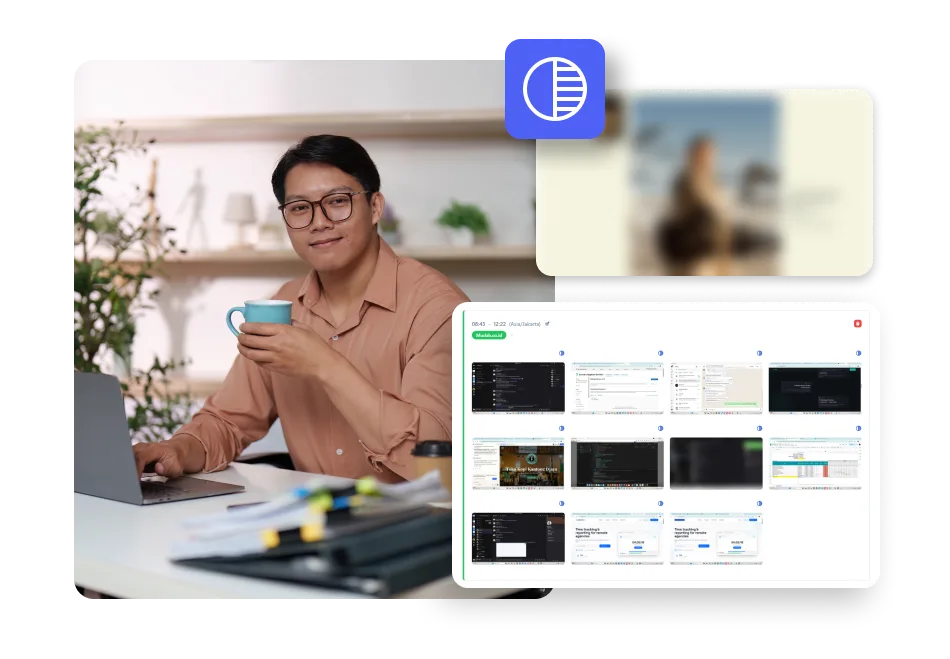
Laporan yang Bisa Dikustomisasi dan Diekspor
Lacak semua aktivitas terkait pekerjaan di seluruh organisasi Anda dengan pelaporan yang detail dan dapat dikustomisasi. Timemoz menawarkan laporan dari timesheet dan pelacakan kehadiran hingga payroll dan budget proyek. Ekspor laporan sebagai PDF atau spreadsheet dan kirimkan ke stakeholder kunci langsung dari aplikasi.
Pelajari Lebih Lanjut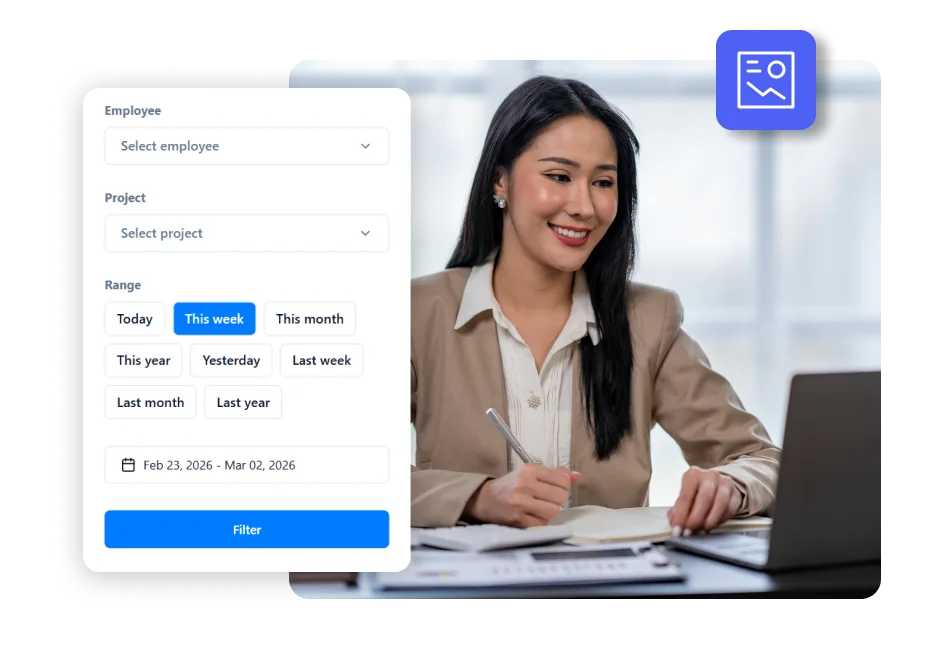
Cara Menggunakan Monitoring Screenshot Karyawan
Minta Tim Menginstall Timemoz
Mulailah dengan meminta tim Anda menginstall Timemoz untuk Mac, Windows, atau Linux. Dari sana, onboard tim Anda untuk mulai melacak waktu dengan monitoring screenshot.
Konfigurasi Pengaturan Screenshot
Tingkatkan pelacakan waktu dengan kemampuan penangkapan screenshot. Sesuaikan frekuensi, aktifkan blur screenshot, atau nonaktifkan fitur sepenuhnya untuk melacak progres berdasarkan gaya manajemen Anda.
Lacak Waktu untuk Merekam Screenshot
Setelah semuanya diatur, pengguna dapat mulai melacak waktu. Timemoz berjalan di latar belakang desktop, secara otomatis menangkap screenshot dan mencatat waktu berdasarkan pengaturan Anda.
Prinsip Inti Kami
Timemoz dibangun di atas fondasi transparansi, akses, dan kontrol individu.
Monitoring yang Transparan
Karyawan selalu tahu kapan screenshot sedang diambil. Timemoz memberikan visibilitas penuh tentang data apa yang dikumpulkan, memastikan kepercayaan dan keterbukaan antara tim dan manajemen.
Akses Data Karyawan
Anggota tim dapat melihat screenshot dan data aktivitas yang sama dengan manajer mereka. Semua pengumpulan data berhenti segera ketika timer dijeda atau dihentikan.
Kontrol yang Mengutamakan Privasi
Pengguna dapat menghapus screenshot sensitif, memburamkan tangkapan untuk privasi, atau menjeda monitoring selama istirahat pribadi. Timemoz menempatkan individu sebagai pengendali data mereka.
Siapa yang Pakai Timemoz?
Pengembangan Software
Agensi Digital
E-Commerce
Konsultan
Asisten Virtual
BPO & Call Center
Pertanyaan seputar screenshot monitoring, terjawab
Semua yang perlu Anda tahu tentang monitoring screenshot Timemoz.
Mulai Uji Coba Gratis dan Lihat Bagaimana Screenshot Timemoz Membawa Kejelasan pada Pelacakan Waktu
Dapatkan akses penuh ke fitur monitoring layar dan bukti kerja saat Anda mencoba Timemoz. Tanpa pembayaran awal.
Coba Timemoz Sekarang